Seamlessly Combine Packages from Different Linux Distributions with Distrobox
Have you ever found the perfect application, only to discover it’s unavailable for your Linux distribution? The fragmentation of Linux ecosystems often makes package compatibility a headache. Fortunately, a tool called Distrobox elegantly solves this by letting you run software from any major Linux distribution inside isolated containers. It leverages Podman or Docker to create lightweight environments where you can install, run, and interact with packages exactly as if they were native—without risking system stability. Below are answers to common questions about mixing distro packages safely.
What is Distrobox and how does it work?
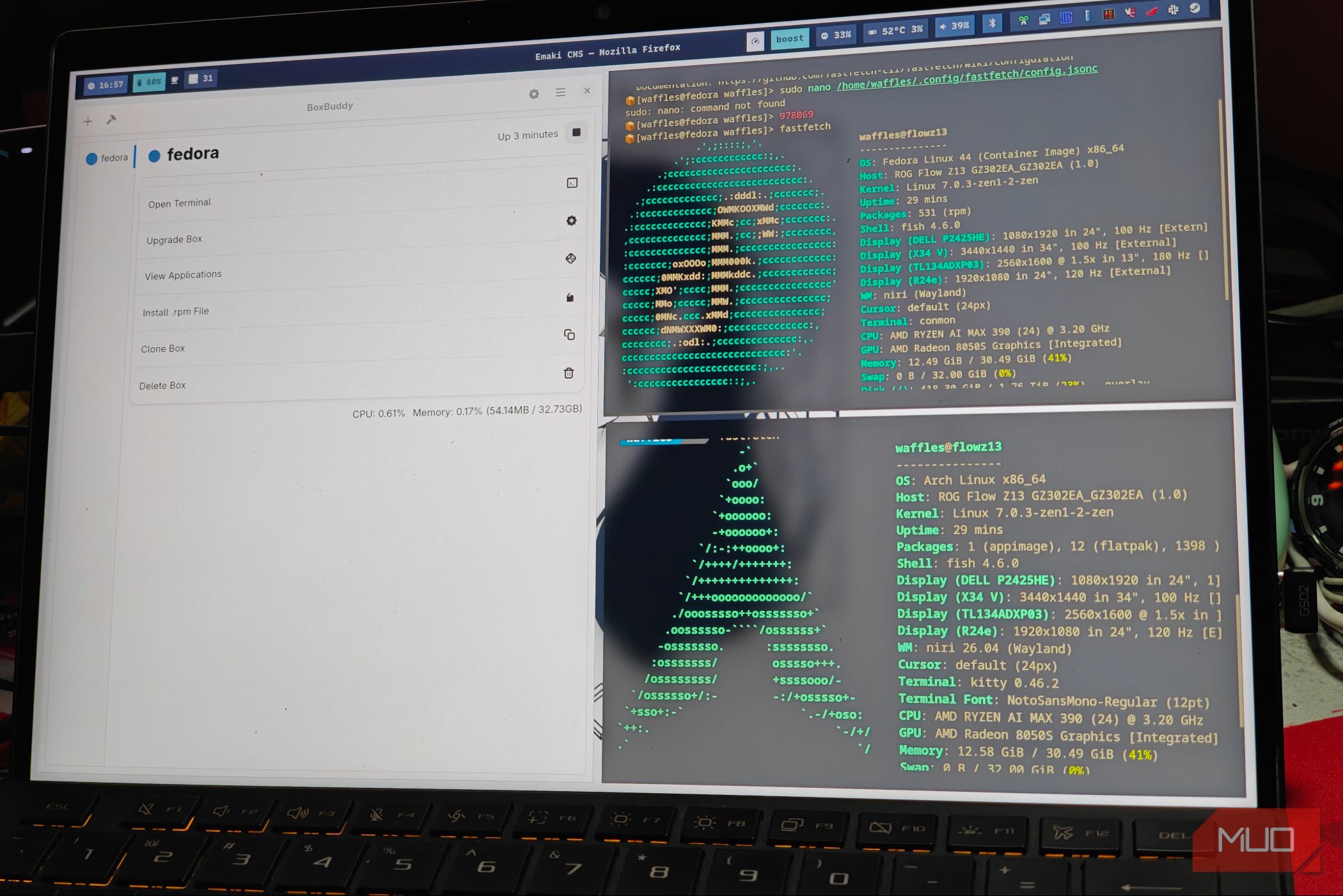
Distrobox is a command-line tool that wraps Podman or Docker containers to create integrated environments for different Linux distributions. You specify a base distro (e.g., Ubuntu, Fedora, Arch) and Distrobox downloads a minimal image, sets up the container, and seamlessly integrates it with your host system. Inside the container you can use the native package manager (apt, dnf, pacman, etc.) to install any software. The container shares your home directory, display server, user permissions, and other critical resources, making the experience feel like you’re running the app directly on your host. Distrobox automates the plumbing so you can focus on using the tools you need.
Why would you want to mix distro packages?
Different distributions excel in different areas. A developer might need a library available only in the Arch User Repository (AUR) while running a stable Debian or Fedora system. A sysadmin might need an older version of a tool that’s only packaged for CentOS. Mixing packages directly on the same host usually leads to library conflicts, dependency hell, or broken system updates. Distrobox sidesteps all that by isolating each distro’s packages in its own container. You can maintain your primary OS’s stability while still having access to the full software catalog of another distribution. This flexibility is invaluable for testing, development, or simply running an application that refuses to install natively.
How does Distrobox prevent breaking your system?
Distrobox relies on containerization technology—specifically Podman or Docker. Each container is a separate user-space environment with its own filesystem, libraries, and package management. Changes inside the container have no effect on the host’s system files, /usr, /etc, or kernel. Distrobox also runs containers without root privileges (rootless mode) for added security. Even if you accidentally install conflicting packages or break something inside a container, you can simply delete that container and recreate it. Your host operating system remains untouched. This sandboxing ensures that you can experiment freely without risking system integrity.
What are the prerequisites for using Distrobox?
Before you can use Distrobox, you need a working installation of either Podman (recommended) or Docker. On most modern Linux distributions you can install these from the official repositories. For example, on Fedora: sudo dnf install podman. On Ubuntu: sudo apt install podman. You also need curl or wget to download the Distrobox installer script. Distrobox itself is a simple shell script, so no heavy dependencies. Once Podman or Docker is installed, run the one-line installer from the official GitHub repository to set up Distrobox. That’s it—you’re ready to create containers.
How do you set up a Distrobox container?
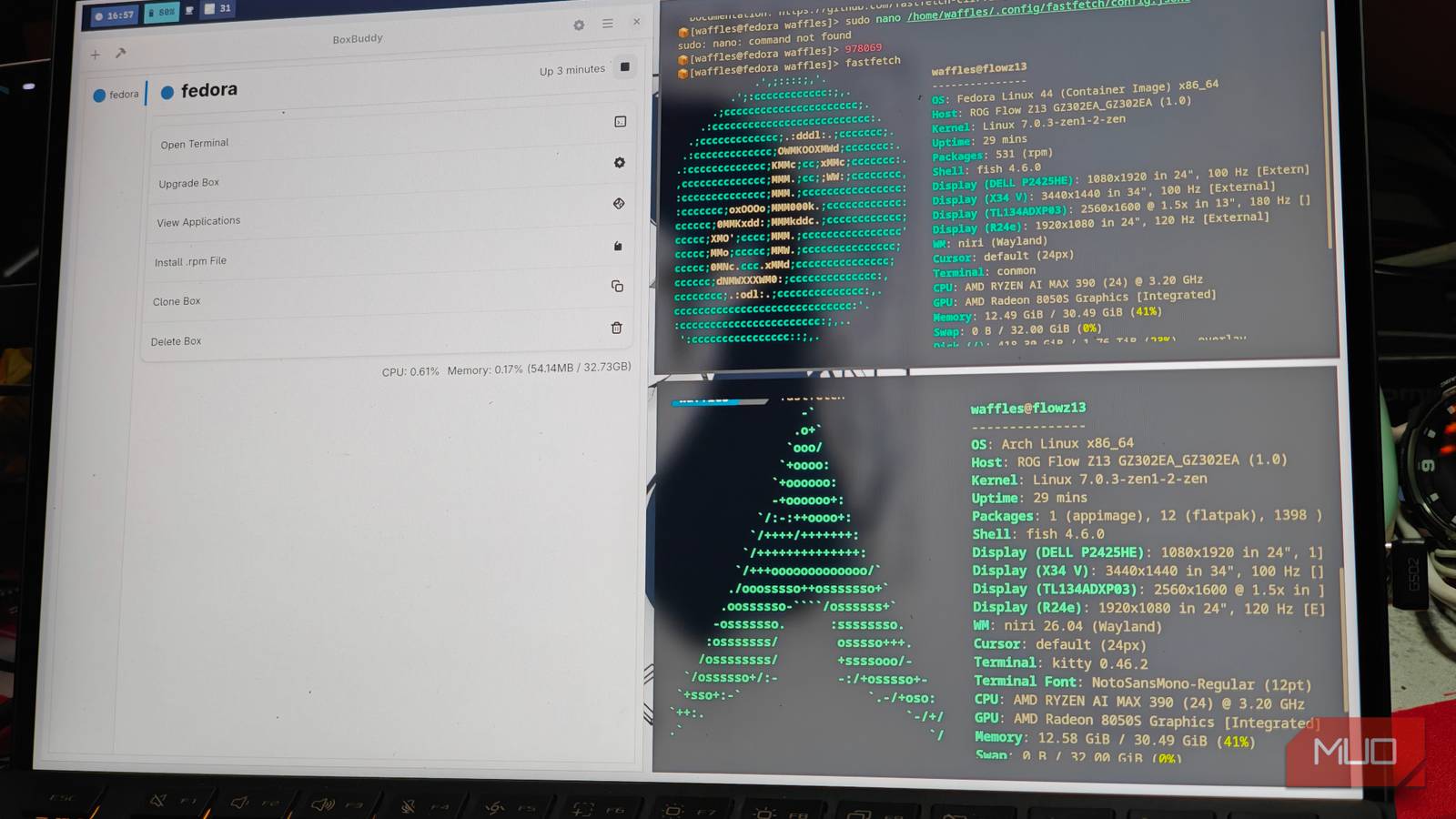
Setting up a container is straightforward. Open a terminal and run a command like distrobox create --name myubuntu --image ubuntu:22.04. This pulls the Ubuntu 22.04 image and creates a container named myubuntu. Then start the container with distrobox enter myubuntu. You’ll be dropped into a shell inside the container, where you can run sudo apt update && sudo apt install <package> just as on a real Ubuntu system. To exit, type exit or press Ctrl+D. The container persists and can be re-entered later. Distrobox also supports passing custom flags to Podman/Docker for mounts or resources. For a full list of options, see the official documentation or use distrobox --help.
Can you share files between your host and Distrobox containers?
Yes, by default Distrobox mounts your host’s home directory inside the container—so files in /home/youruser are visible and modifiable from both sides. You can also mount additional directories using Podman or Docker volume flags during container creation. This makes it easy to work on projects stored on your host while using tools from a different distro. For instance, you could edit code in your host’s VS Code and compile it inside an Ubuntu container that has specialized libraries. File permissions are handled via user namespace mapping, so you generally don’t face ownership issues. If you need to share system directories (e.g., /mnt), you can pass --volume options explicitly.
Related Articles
- 7 Reasons Critical Role's Campaign 4 Cast Embraces Character Mortality
- Historical Precision in New Drama Series Triggers Audience Engagement Surge
- How to Transform Mundane System Tools into Desirable Experiences
- 8 Lessons from the Vienna Circle for Designing a More Amiable Web
- Hidden Power: Android Widgets Unveil Secret Buttons When Resized
- 8 Key Insights Into OnePlus's Merger With Realme and What It Means for the Brand's Future
- How to Identify and Defend Against EtherRAT Distribution via Fake GitHub Repositories Masquerading as Admin Tools
- Unlocking VLC's Hidden Powers: Beyond Just Playing Media