Streamline Your Browser: How to Replace Dozens of Extensions with IT-Tools
Overview
If you’re a power user, your browser likely hosts an ecosystem of extensions and pinned tabs for every small utility you need: JSON formatters, file converters, timestamp decoders, text diff tools, and more. Over time, this clutter can slow down your browser and make it harder to find what you actually need. Enter IT-Tools, a free, self-hosted collection of over 50 utilitarian web apps that can easily replace half your browser tools. This guide will walk you through setting up IT-Tools on your own machine, so you can keep everything tidy and accessible from one address.
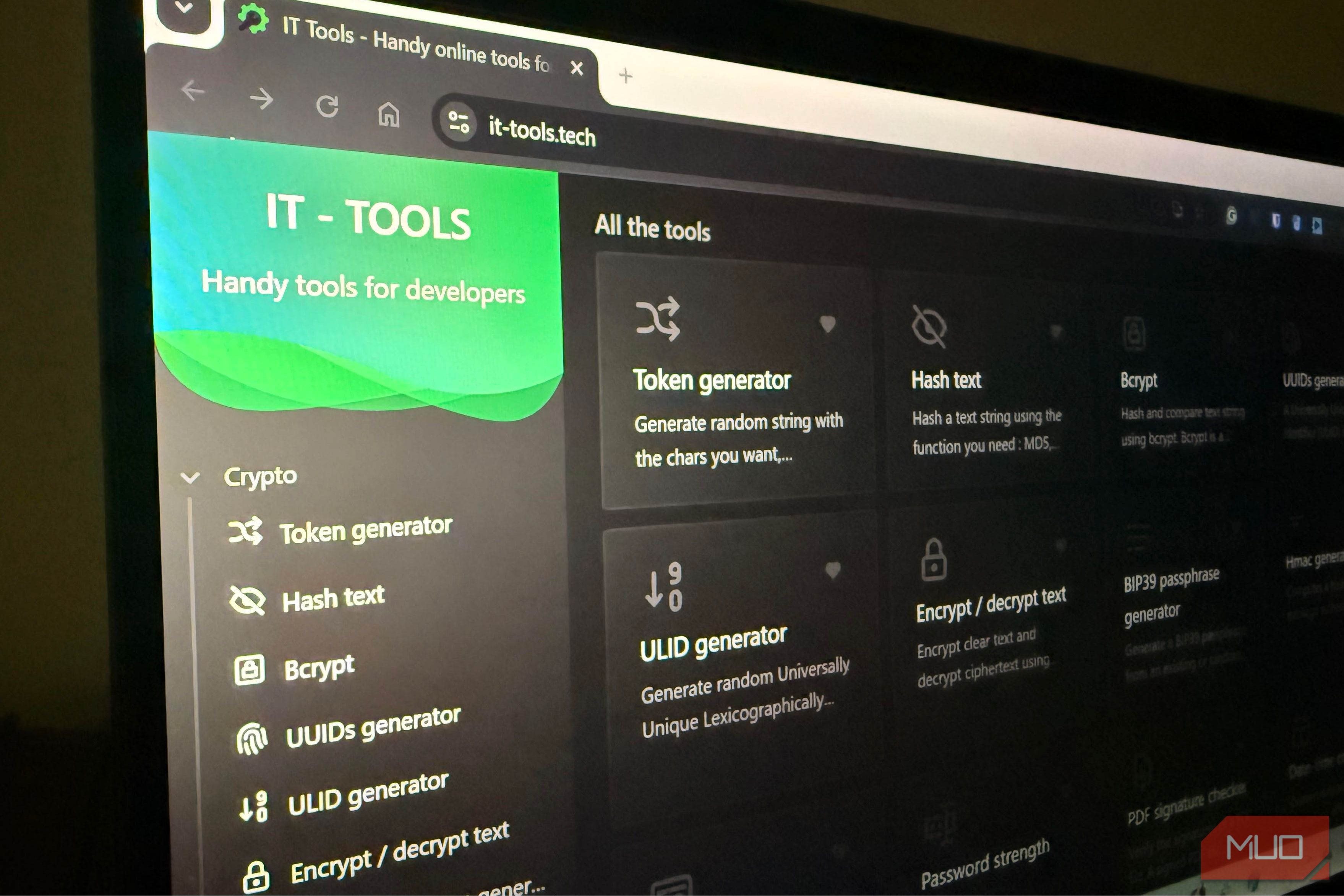
IT-Tools runs as a Node.js or Docker application and provides tools like JSON formatting, base64 encoding/decoding, file conversion, hash generators, and many more. Instead of installing separate extensions, you just open one local site. Let’s get started.
Prerequisites
Before you begin, make sure you have the following:
- Node.js (version 16 or later) and npm (or Docker if you prefer containerization)
- A terminal or command line interface
- Basic familiarity with running commands and navigating the file system
- A machine (local or server) with at least 512 MB of RAM and 1 GB of free disk space
- Port
80or3000free (or you can change the port later)
If you don’t have Node.js installed, download it from nodejs.org. Docker users should have Docker Engine installed (see docs).
Step-by-Step Installation Guide
Option 1: Using npm (Node Package Manager)
- Open your terminal and navigate to a directory where you want to install IT-Tools.
- Install the package globally using npm:
npm install -g it-tools - Start the server:
it-tools start
By default, it runs on port3000. You should see output likeListening on http://localhost:3000. - Open your browser and go to
http://localhost:3000. You’ll see the IT-Tools dashboard with all available utilities.
Option 2: Using Docker
If you prefer to keep things isolated, Docker is the way to go.
- Pull the image:
docker pull corentinth/it-tools - Run the container:
docker run -d --name it-tools -p 3000:80 corentinth/it-tools
The-p 3000:80maps the container’s port 80 to your host’s port 3000. Change the first port if needed. - Access via
http://localhost:3000.
Accessing and Using IT-Tools
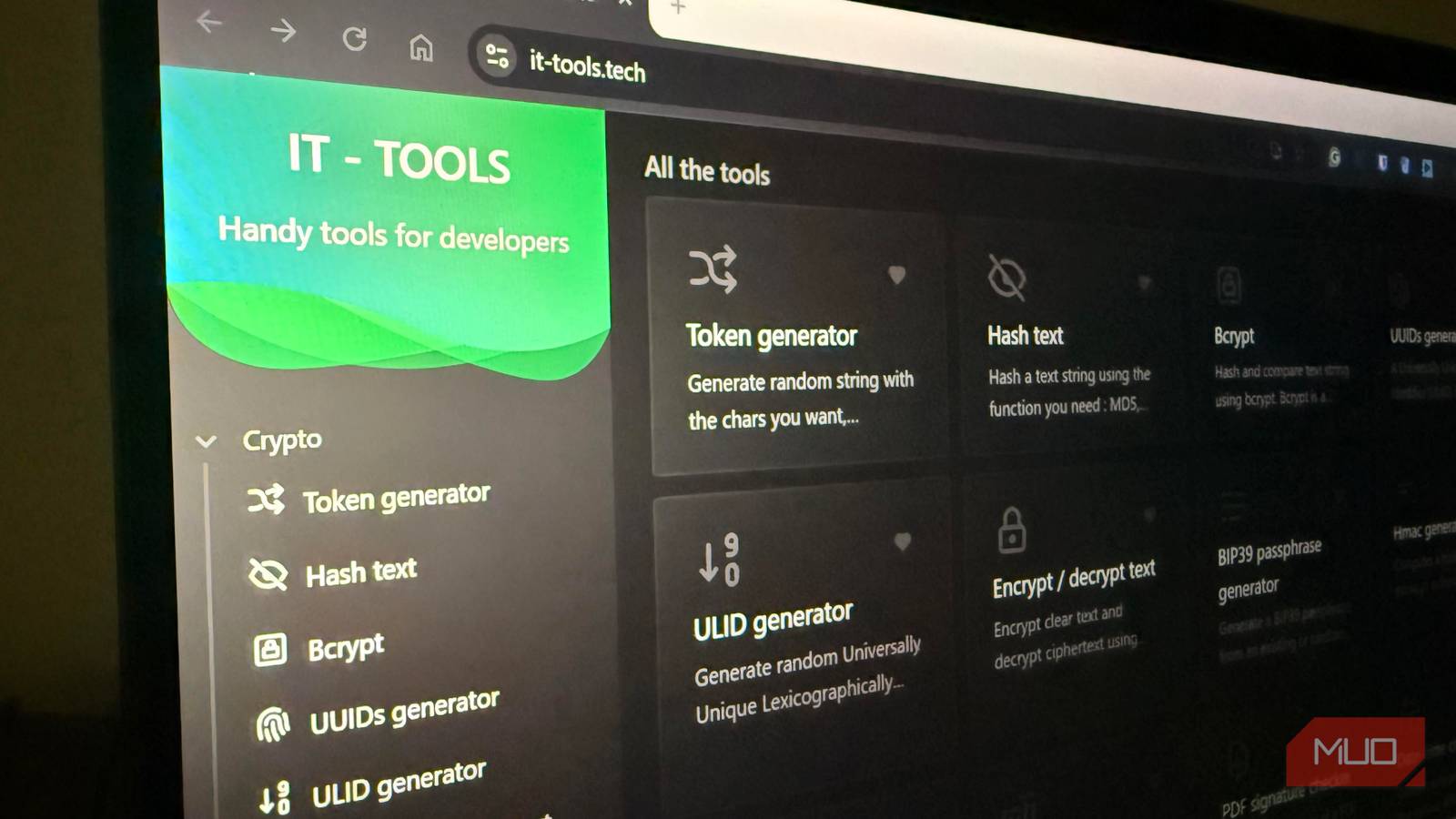
Once IT-Tools is running, you’ll see a clean dashboard. You can click any tool to open it. The interface is responsive and works on mobile too. Key tools you might use daily:
- JSON Formatter & Validator – paste any JSON, get beautifully indented output with validation errors highlighted.
- File Converter – convert between formats like CSV, JSON, YAML, and XML.
- Hash Generator – compute MD5, SHA1, SHA256, etc., from text or files.
- Text Diff – compare two strings or files side by side.
- Base64 Encoder/Decoder – quick conversions without leaving the page.
- UUID Generator – create random UUIDs in v4, v5, or v1.
You can also bookmark the tools you use most by simply dragging the URL from the address bar to your bookmarks bar.
Customizing the Setup
To change the port: when running via npm, use PORT=8080 it-tools start. For Docker, change the first port in -p mapping. You can also run IT-Tools behind a reverse proxy (like nginx) for production use.
Common Mistakes
- Port already in use. If you get an
EADDRINUSEerror, change the port as described above. Check which process is using the port withlsof -i :3000(macOS/Linux) ornetstat -ano | findstr :3000(Windows). - Missing Node.js version. IT-Tools requires Node 16+. Check with
node --version. If you have an older version, use a version manager likenvmto upgrade. - Docker container stops after a few seconds. Often caused by memory issues or port conflicts. Run
docker logs it-toolsto see error messages. Ensure the container has enough memory and the host port is not taken. - Forgetting to update. New tools are added regularly. For npm, run
npm update -g it-tools. For Docker, pull the latest image and recreate the container. - Browser caching old version. If the interface looks outdated, clear your cache or use a private window to test.
Summary
IT-Tools consolidates dozens of browser utilities into a single, self-hosted application that you can access in seconds. By replacing fragmented extensions and pinned tabs, you declutter your browser, reduce resource usage, and speed up your workflow. Whether you use npm or Docker, installation takes less than five minutes. Once it’s running, you’ll wonder how you ever lived without it. Give it a try and reclaim your browser real estate.
Related Articles
- Autonomous AI Agents Emerge as New Security Threat in Enterprise Systems
- Photo Platform SmugMug Warns: Axing Section 230 Could ‘Bankrupt’ Small Businesses and Delay Wedding Photos
- Apple Unveils Q2 2026 Revenue Guidance: 14-17% Growth Amid Supply Constraints
- New Open Standard Aims to Make Web Blocks Interchangeable Across Platforms
- Garlic: Nature's Mosquito Birth Control? Yale Study Reveals Surprising Pest Control Potential
- AI Coding Tools Overwhelm Code Reviews: Fix Errors Before PR Submission, Experts Urge
- AWS Unleashes Claude Opus 4.7 and AWS Interconnect GA in Dual Cloud Breakthrough
- How to Identify and Delete Chrome's Hidden 4GB AI Model on Mac